You have a picture of a schedule and you want the dates in your iPhone calendar. There are three ways to do it. Type each event into Apple Calendar by hand. Use the iPhone’s own text detection to turn one date into one event. Or hand the whole picture to an app that reads every date on it at once. Which one you want comes down to how many dates are on the page. Two or three, type them. A grid with a month of shifts on it, scan it.
We make Lumical, an app that scans work rosters into your calendar, so read this with that in mind. Most of what follows works without installing anything.
What the iPhone can do on its own
Open a photo in Photos and iOS looks for text in it. If it finds any, a small text button appears in the corner of the picture. Tap it and the text becomes selectable, the way text on a web page is. Dates and times get underlined. Tap an underlined date and iOS offers Create Event, which opens Calendar’s new event sheet with the date already filled in.
This is a good feature and it has been built into Photos for years. For a single line it is the fastest route there is. A flyer with one date on it, a message with a time in it, a screenshot of a booking confirmation: two taps and it is in your calendar. If that is your case, stop reading here.
A roster grid is a different problem. Live Text hands you the characters. It does not know that the D in a cell belongs to the column header three rows up, or that the legend at the bottom of the page says D means 07:00 to 15:00. And it works one date at a time. A page with sixteen shifts on it means sixteen trips through the same sheet.
Typing it in
Sometimes typing is the right answer.
If your rotation is fixed and never changes, Apple Calendar’s repeat rules will carry it. Set one event, repeat it on the cycle, done. If the rotation has a name, you do not need to type even that much. Our shift pattern pages draw 23 common rotations for 2026, 2027 and 2028, and each one has a calendar file you can download and import for free.
Typing stops working when the schedule changes every month. Look at the roster in the next section. One person on it works five or six shifts in a week, so a month is around twenty entries, each with a start time, an end time and a place.
Then there are the night shifts. A night shift on that roster runs 23:00 to 07:00, which puts it on two calendar days. Set the end time to 07:00 on the same date and you get an event that finishes before it starts. Move the whole shift to the next day instead and Saturday looks free on your phone while you are actually at work until seven that morning. We counted what that costs you over a year of weekends in the Friday night rule.
Scanning the whole picture
The third way is to give the app the picture and let it find the dates. This is what Lumical does, so the walkthrough below is ours.
- Take the photo, or pick a picture you already have. A screenshot from a group chat works the same as a photo of paper on a wall.
- Wait for the read. The app goes over the page and pulls out every dated item it can find.
- Check the list. Nothing has been saved yet. Untick anything that is not yours, and tap an event to fix a time, a title or a location.
- Choose which calendar the events go into, then save.
Step 3 is not a formality. Reading a photo is not perfect. Bad light, a crease in the paper, a handwritten correction over a printed cell: any of those can produce a wrong time or a missed row. So nothing is written to your calendar on its own. You see the whole list first, and what you do not tick does not get saved.
A ward roster
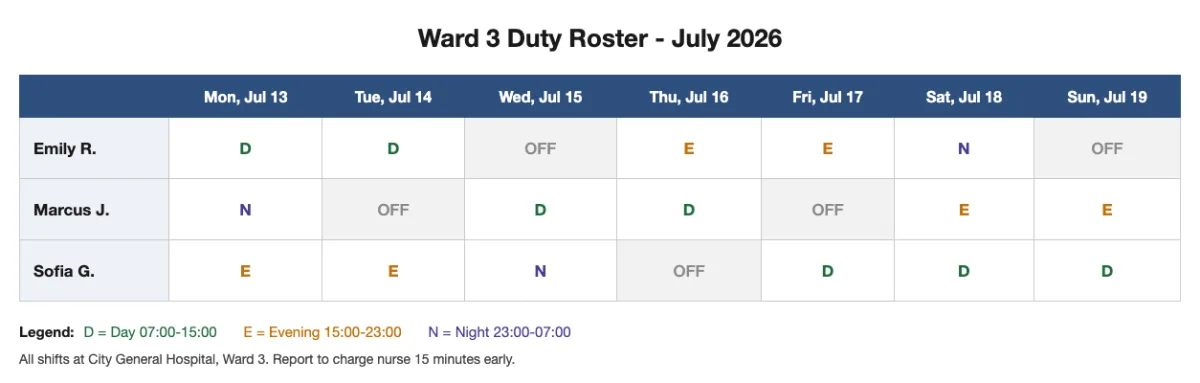
The legend gives the times: D is 07:00 to 15:00, E is 15:00 to 23:00, N is 23:00 to 07:00. The line under it says every shift is at City General Hospital, Ward 3.
Photographed and read, that page comes back as sixteen events. Count the cells that are not OFF and you get the same number: five for Emily, five for Marcus, six for Sofia.
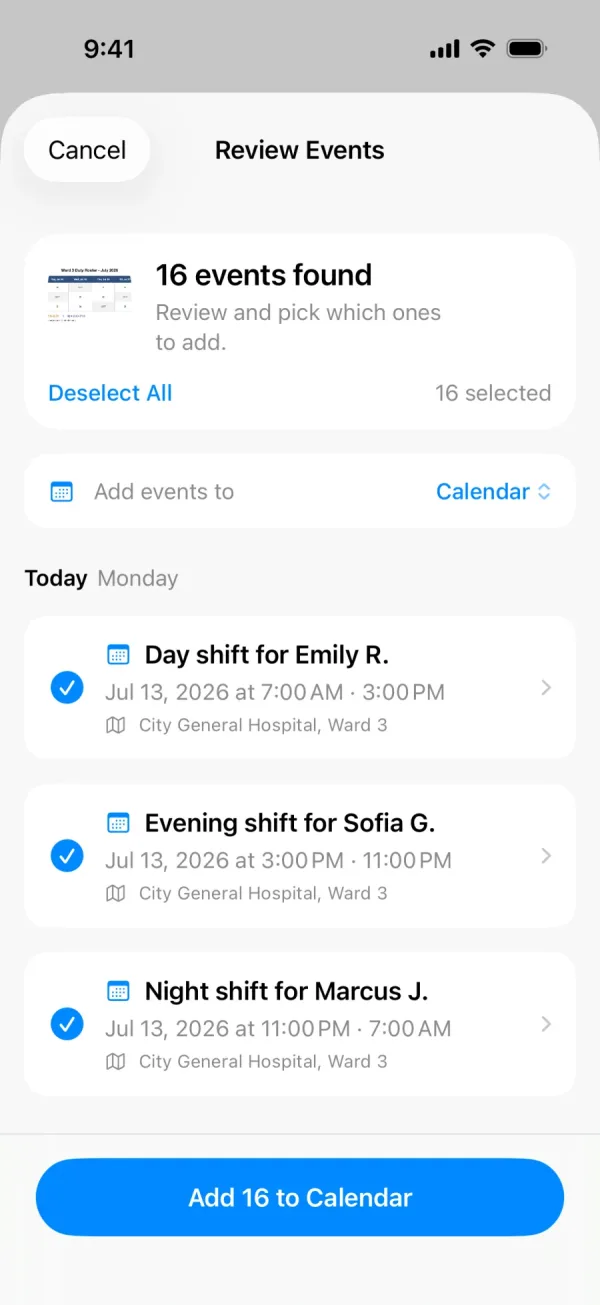
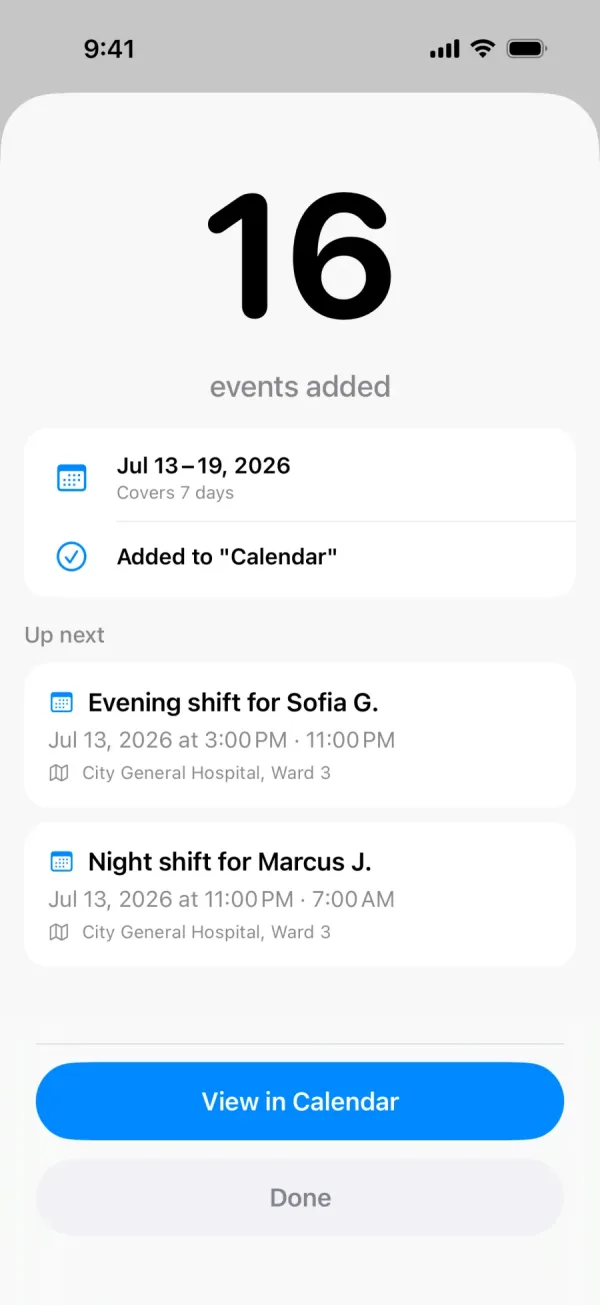
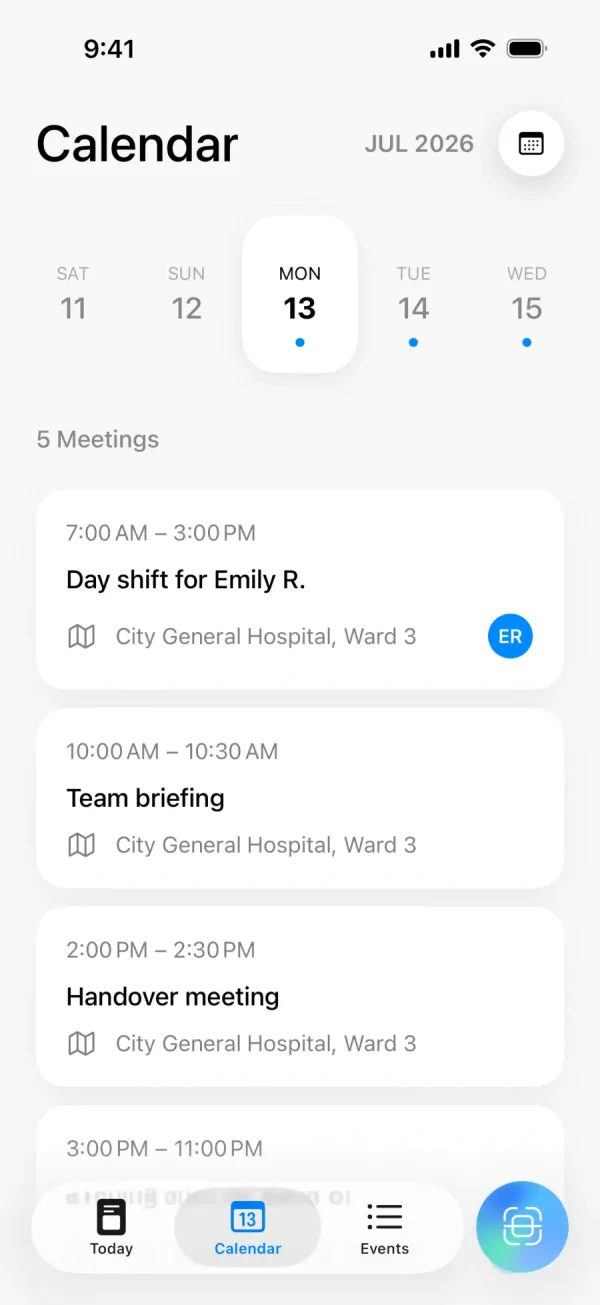
Three things on the review screen are worth pointing at. The codes were expanded using the legend, so a D cell became an event running 7:00 AM to 3:00 PM instead of an event called “D”. The location came off the line at the bottom of the page. And the three night shifts run from 11:00 PM on one date to 7:00 AM on the next, which is the part that goes wrong most often when you type it.
The last screen shows Monday 13 July. The new day shift sits alongside a team briefing and a handover meeting that were already in the calendar, because the shifts went into the same Apple Calendar as everything else on the phone.
A notice on a board
Not every schedule is a grid.
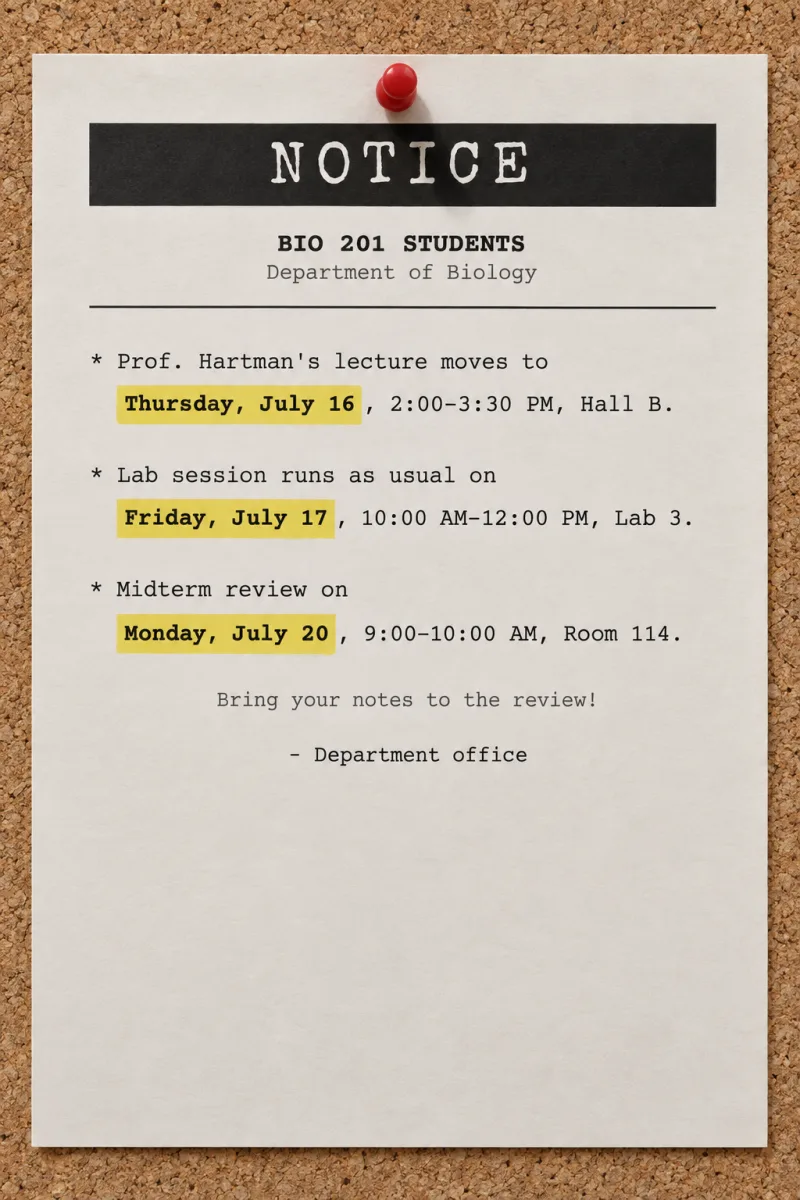
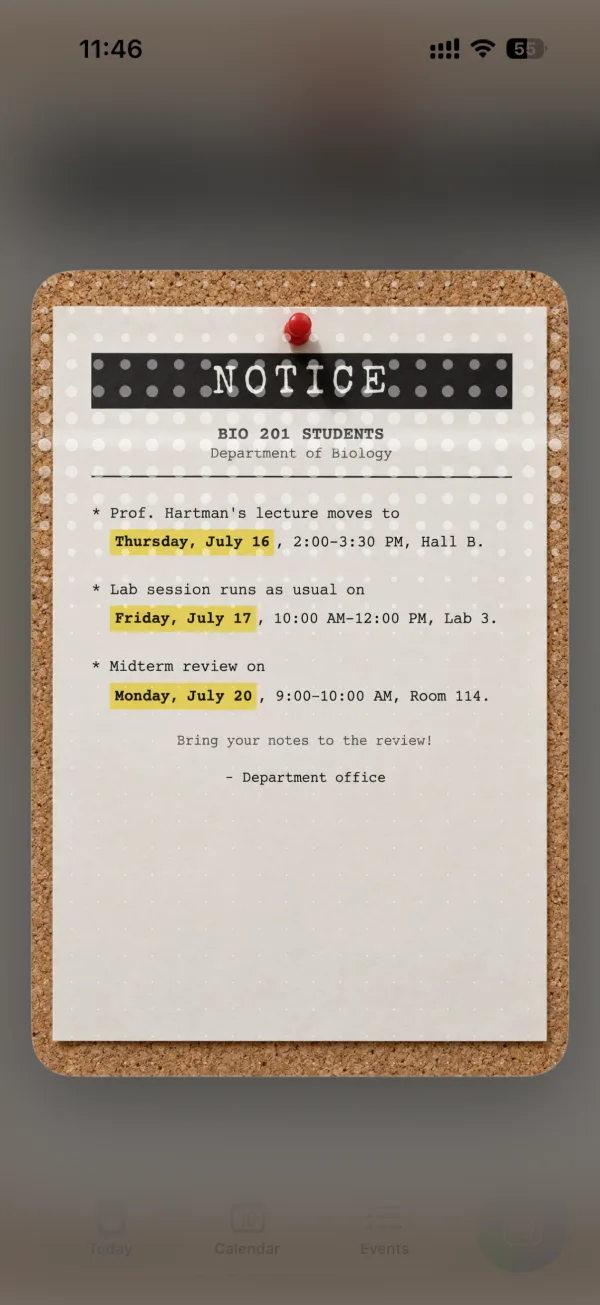
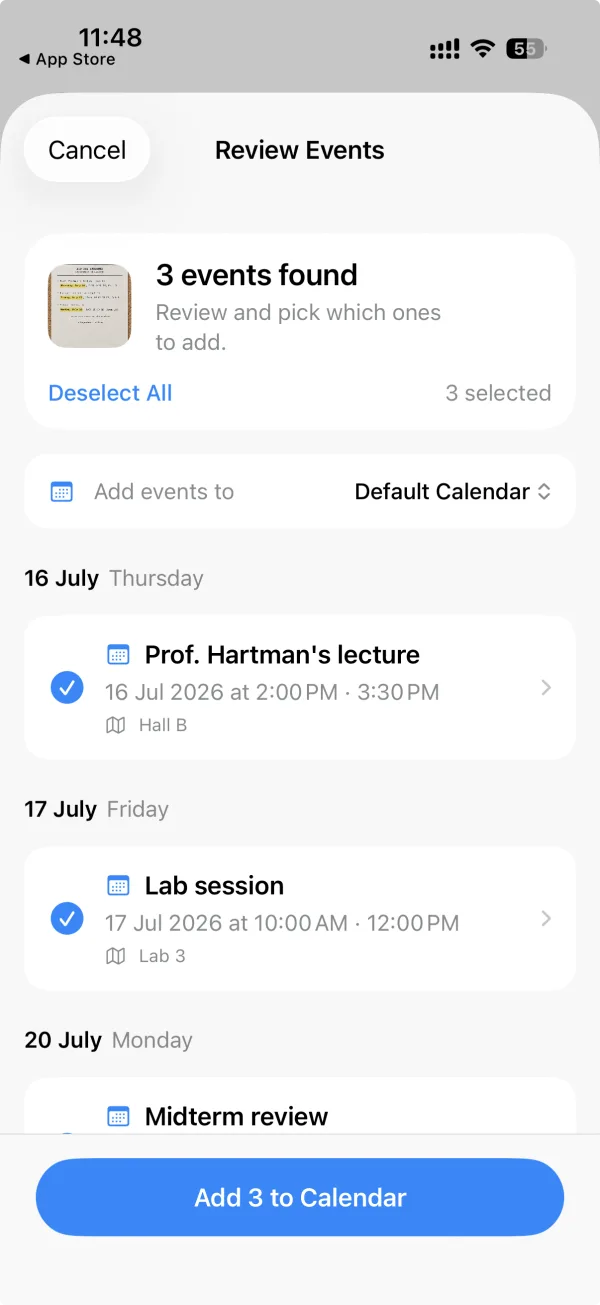
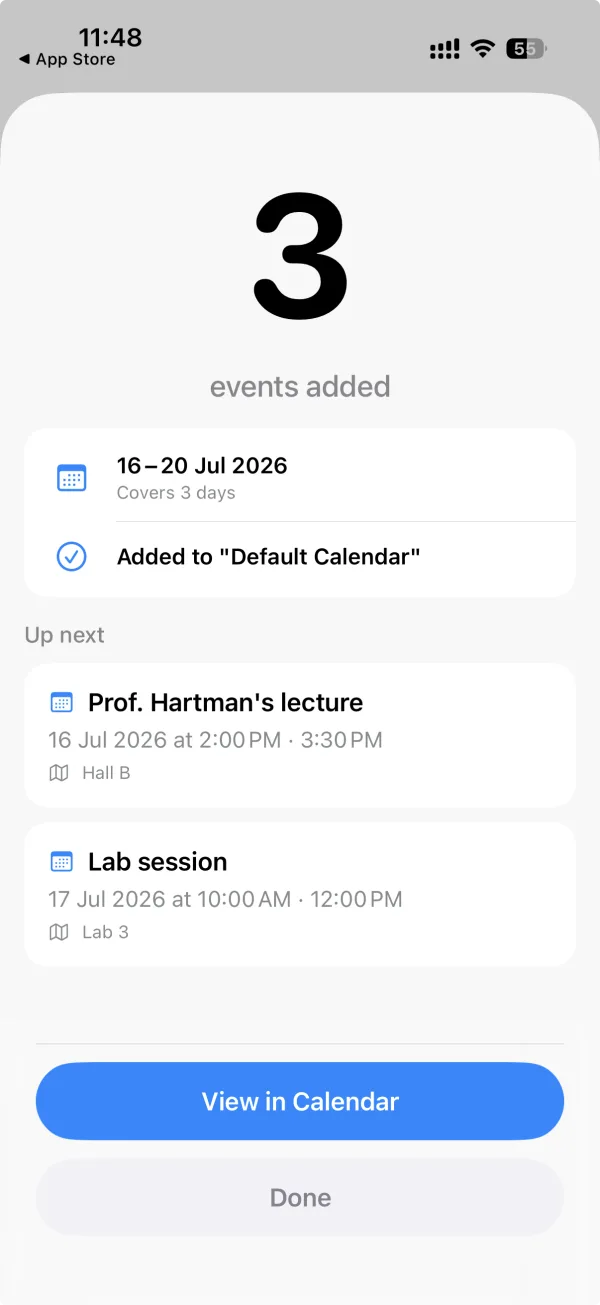
The read gives the lecture on Thursday 16 July from 2:00 PM to 3:30 PM in Hall B, the lab session on Friday 17 July from 10:00 AM to 12:00 PM in Lab 3, and the midterm review on Monday 20 July from 9:00 to 10:00 AM in Room 114. No legend to expand here. The times are written out, and each room came from the sentence it sits in.
What it reads, and what it does not
Pictures. A photo of paper on a wall, a photo of a printed sheet, a screenshot from the WhatsApp group, a screenshot of a page on a website. Handwriting works too, but it is the hardest case on the list, so look properly at the review screen when there is pen on the roster.
Not files. No PDFs and no email attachments. If your schedule arrives as a PDF, open it, screenshot the page you need, and scan the screenshot.
Apple Calendar. That is where the events go, and it is the only place they go. You pick which calendar on the review screen. After that they are ordinary events on your iPhone.
The three methods side by side
| Method | Fits | Weak point |
|---|---|---|
| Type it into Apple Calendar | A fixed rotation, or two or three dates | Slow at twenty entries a month, and overnight shifts land on the wrong date |
| Live Text, then Create Event | One date in a photo, message or email | One event at a time, and it cannot expand a shift code from a legend |
| Scan the whole picture | A roster, notice or timetable with many dates on it | The read is not perfect, so you check the list before saving |
A scanner is a narrow tool. If what you actually want is a shift calendar you tap your own rotation into, or one that lets you compare shifts with colleagues, we compared eight of them in the best shift calendar apps. Lumical is in there and marked as ours.
Holding this month’s schedule as a photo right now? Get Lumical on the App Store and try it on that picture.